How to compare two SQLite files on Mac
See which records were added, deleted, or changed between two versions of a table with PaneQL.
25-second demo
Compare the files step by step
Download both SQLite sample files (ZIP)
Unzip the download to get inventory-before.sqlite and inventory-after.sqlite.
Load the two files
Open one of the sample files in PaneQL. Click Compare files at the top of the workspace. If the button is hidden, look in the Tools menu. Use Choose earlier file for the older copy and Choose later file for the newer copy. Click Load selected file after choosing each file.
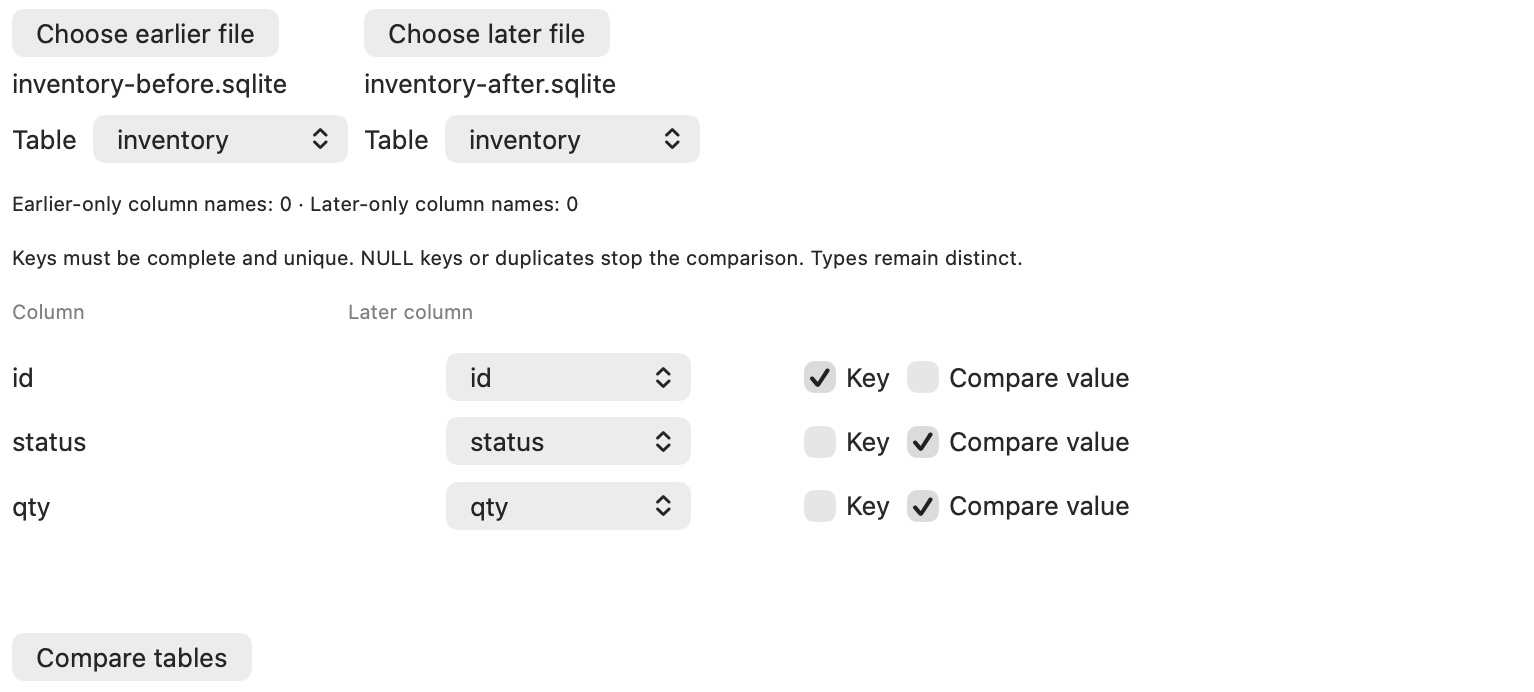
Choose the table and key
Select the
inventorytable in both lists. Markidas the Key. The sameididentifies the same record even when row order changes. Check Compare value forstatusandqty. Review the column mappings.Read and export the differences
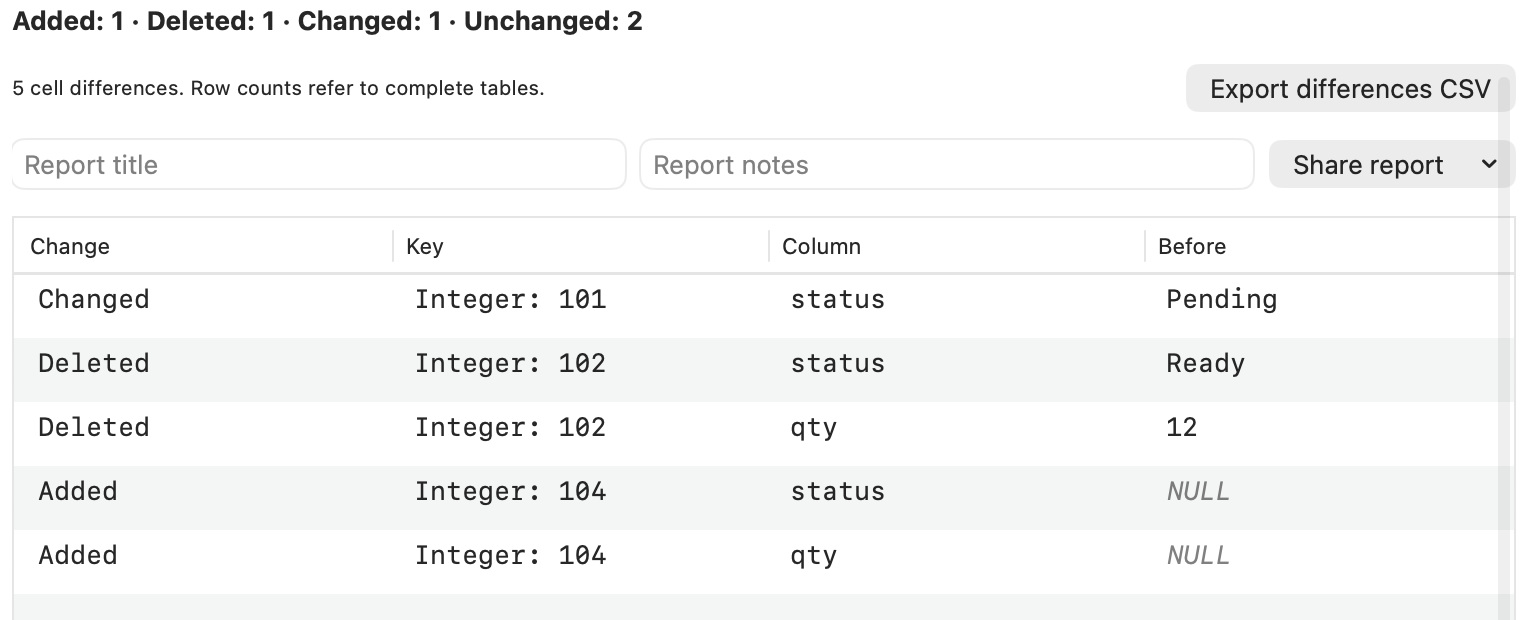
Click Compare tables and scroll to the results. The example has one added record, one deleted record, and one changed record. Scroll the grid to the right if the After column is out of view. Use Export differences CSV if you need a copy of the differences.
What changed in the example
| Record | Result | Details |
|---|---|---|
| 101 | Changed | Status Pending → Ready |
| 102 | Deleted | Only in the earlier file |
| 104 | Added | Only in the later file |
Records 103 and 105 stayed the same. Both tables have four rows.
When using your own files
Choose a key that is unique and has no missing values in either table. Use multiple columns as a key if needed. Match columns manually if their names differ. PaneQL compares local snapshots and leaves the source files unchanged.
Have a one-off data task? Use the 14-day free trial if your Apple Account is eligible.
View on the Mac App Store